Documentation / Getting started
Overview of the institution dashboard
What the first screen tells you, and how to use it to find the work waiting on you.
Signing in at your institution’s address takes you to Overview. It answers one question: what needs attention today. Nothing on it is editable — every panel is a way into the record behind it.
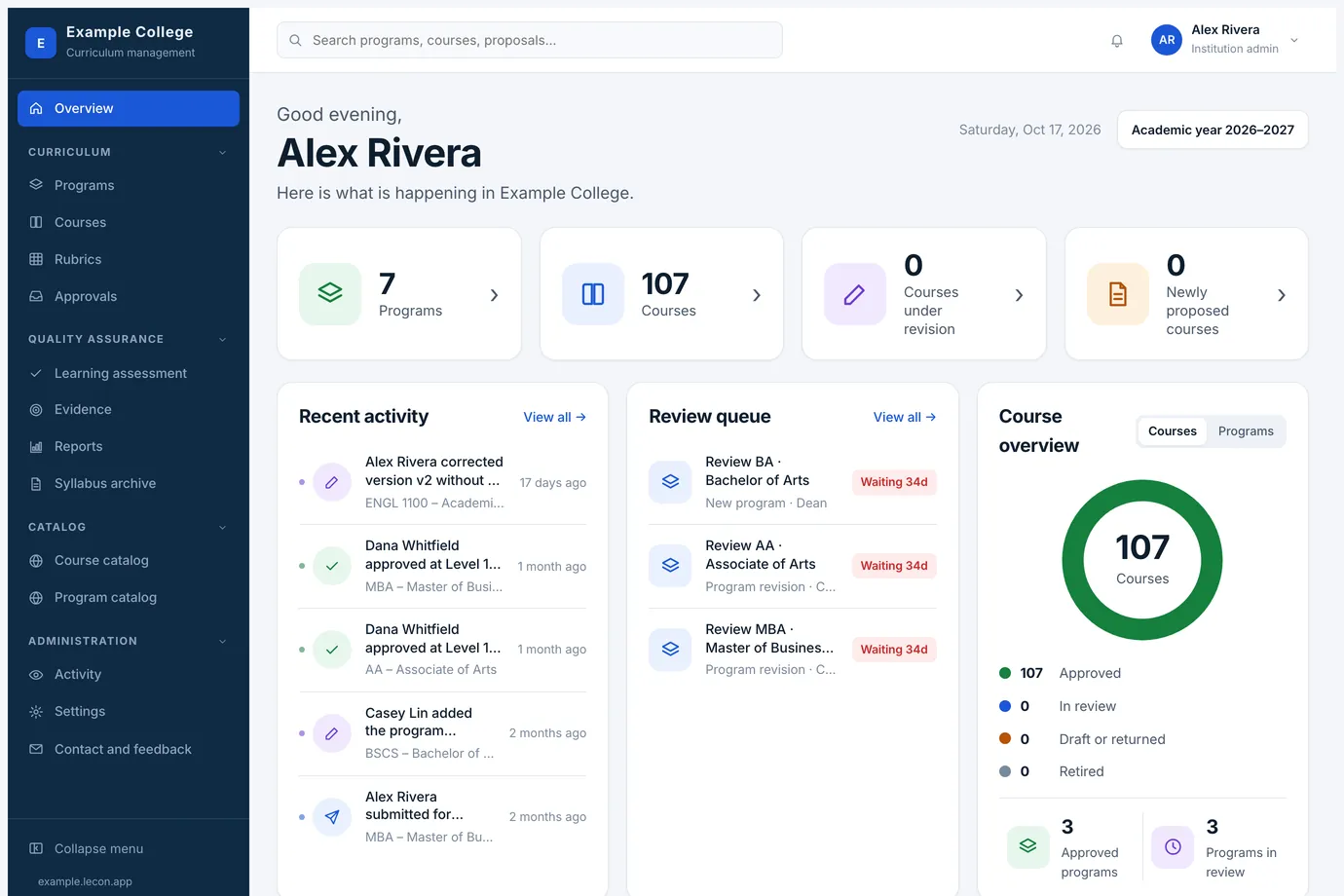
The counts along the top
- Programs
- Every program on the books. Opens the program list.
- Courses
- Every course on the books. Opens the course list.
- Courses under revision
- Approved courses with a revision in progress. The approved version is still the one in effect.
- Newly proposed courses
- Courses proposed but not yet approved, which is a different thing from a revision to an existing one.
The three panels
- Recent activity
- The last changes across the institution — submissions, approvals, corrections, map changes — each naming the person and the course or program. Any row opens that record’s activity log.
- My tasks
- What is waiting for your decision, oldest first, with the days it has been sitting there. If you are an institution admin with nothing held for you personally, this becomes Review queue and shows everything in review, because you may act on any of it.
- Course overview
- A ring breaking the courses down by where they stand: approved, in review, draft or returned, in a retirement review, retired. Each legend line opens a list of exactly those. The switch in the corner turns the same panel into Program overview, and below the ring are two counts for the other kind.
Quick access
A row along the bottom for the things people come here to start: Add course, Add program, Approvals, View catalog (which opens the public catalog in a new tab) and Learning assessment. You see only the ones your role allows.
NextGetting around: menu, search and your profile