Documentation / Getting started
Getting around: menu, search and your profile
The parts of the screen that are the same everywhere, and the settings that are yours rather than your institution’s.
Every page has the same frame: your institution’s menu down the left, search and your own account along the top. Both are worth two minutes, because everything else is reached through them.
The menu
- Overview is the dashboard. Curriculum holds Programs, Courses, Rubrics and Approvals. Quality assurance holds Learning assessment, Evidence, Reports and the Syllabus archive. Catalog opens the public pages in a new tab. Administration holds Activity and Settings.
- Each heading folds and unfolds, and remembers how you left it on that device. The group holding the page you are on always stays open, so the highlighted item is never hidden.
- Contact and feedback at the end writes to the Lecon team — what works, what does not, what you would like to see. Replies come to your email.
- Collapse menu at the bottom narrows the menu to icons. Your institution’s address is printed under it, which is the address to give colleagues.
- What appears depends on your role and on which features your institution has turned on, so two people may see different menus.
Search
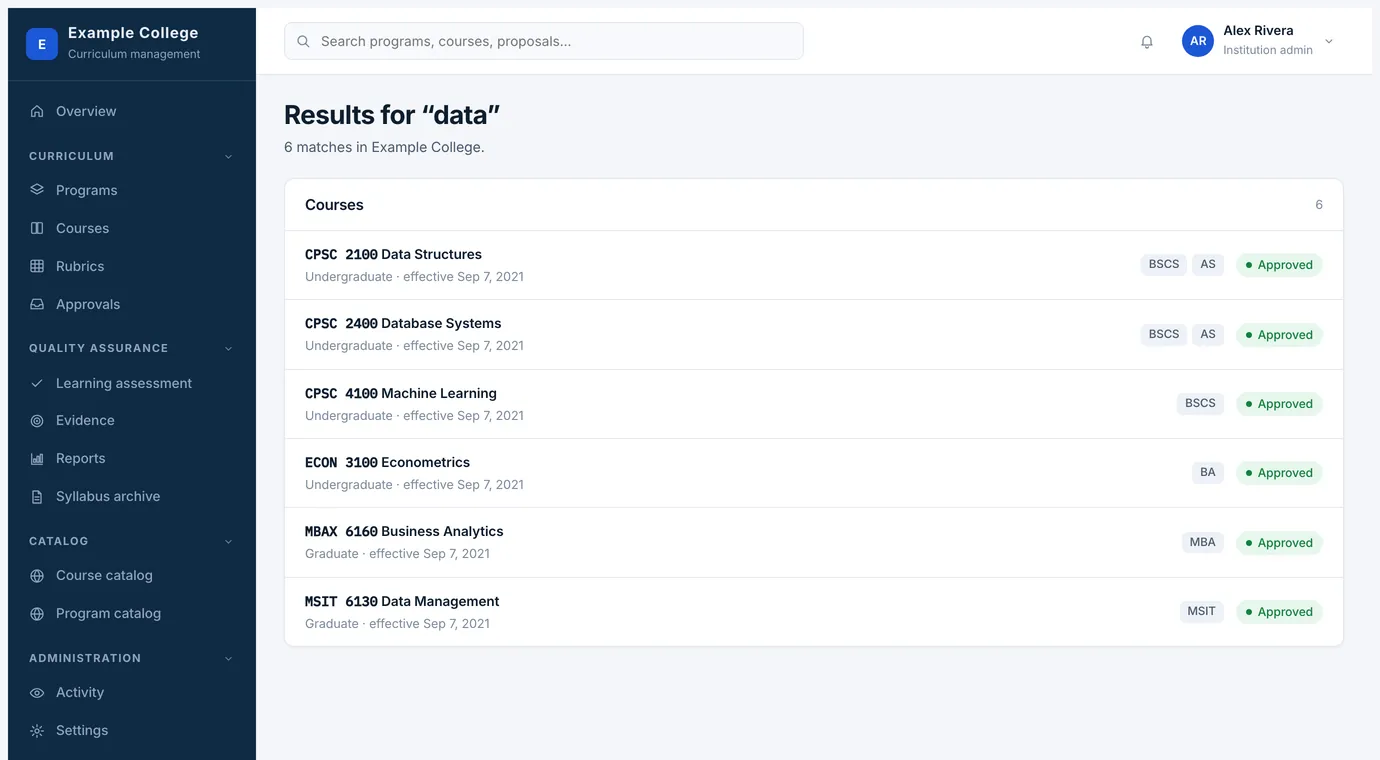
The box at the top searches course codes, course names and descriptions, and program names. Results come back grouped into programs and courses, each line carrying the programs a course belongs to and its status, so you can tell an approved course from one under review before opening it.
Your profile
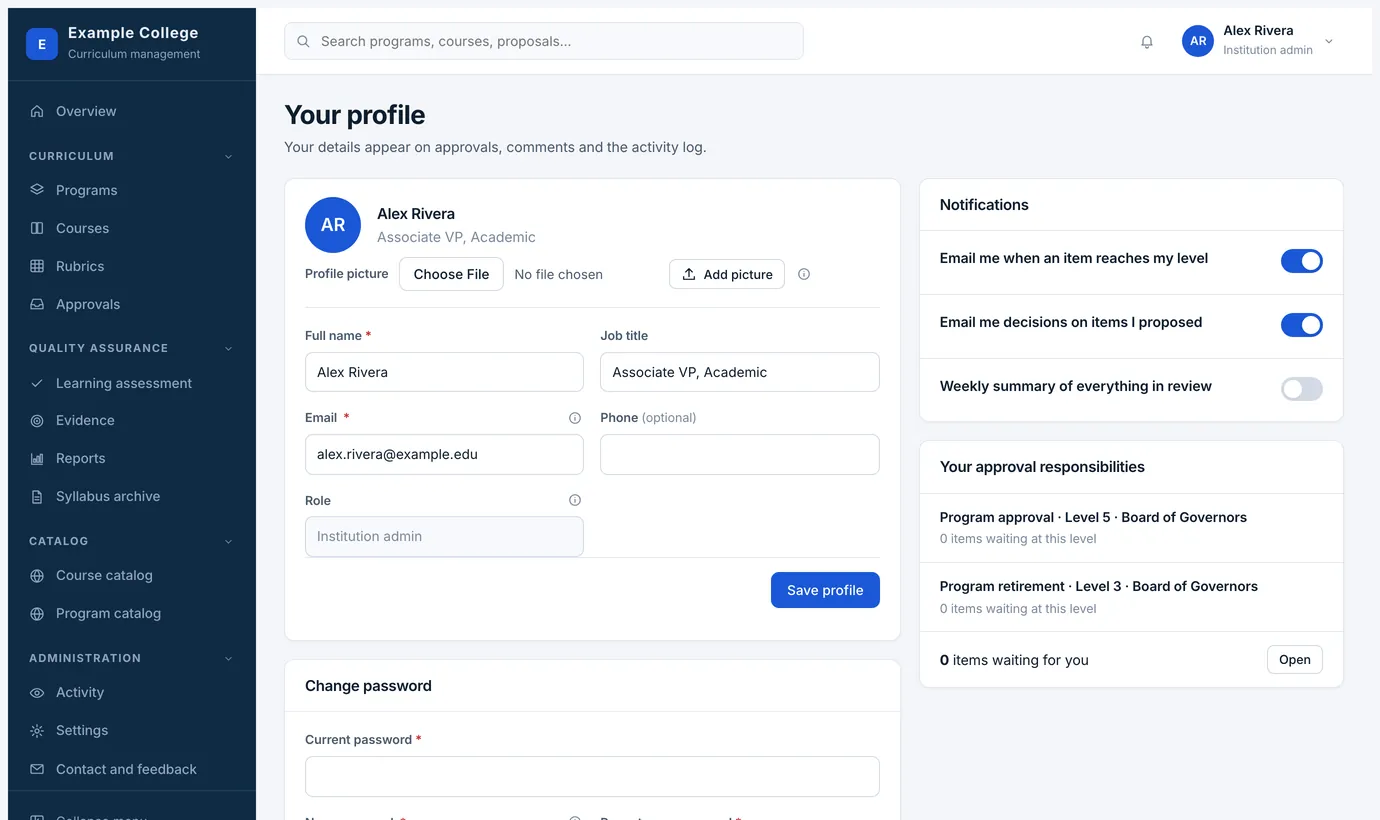
Your name in the top right opens your profile. What is here is yours, not your institution’s.
- Your details
- Full name, job title, email, phone and a picture. These appear on approvals, comments and the activity log, so they are worth getting right. Your role is shown but not editable — only an institution admin changes that.
- Notifications
- Three switches: email me when an item reaches my level, email me decisions on items I proposed, and a weekly summary of everything in review. Your institution decides what is sent at all, under Settings → Users and roles → Notifications; this narrows it to what you want.
- Your approval responsibilities
- The processes and levels you sit on, each with the number of items waiting there, so you can see why things arrive for you. Only an institution admin can change your role or your levels.
- Change password
- Not shown when your institution signs you in through single sign-on.