Documentation / Curriculum
How to add a new course
Enter a course you already offer, or propose a new one and send it through approval.
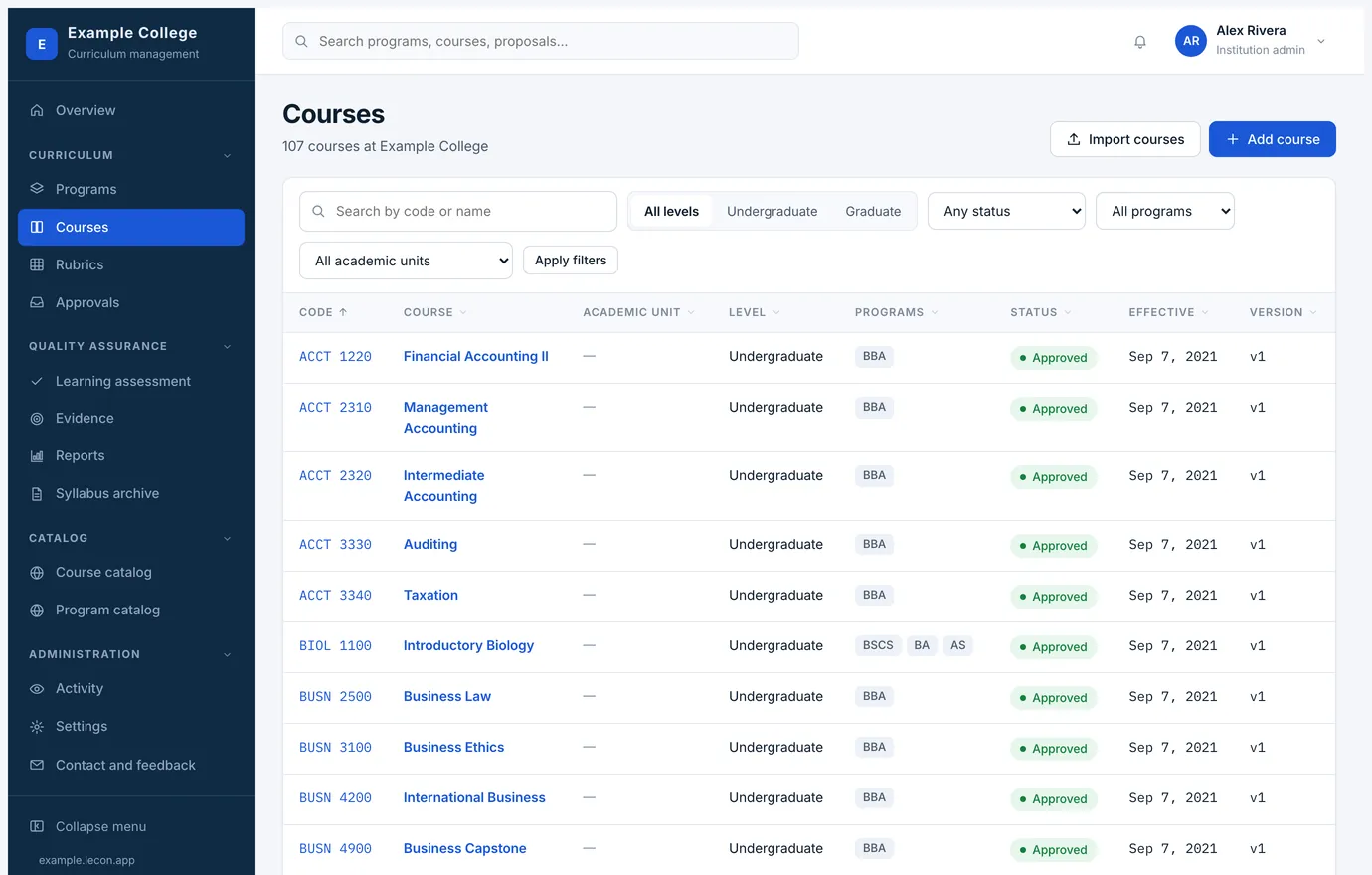
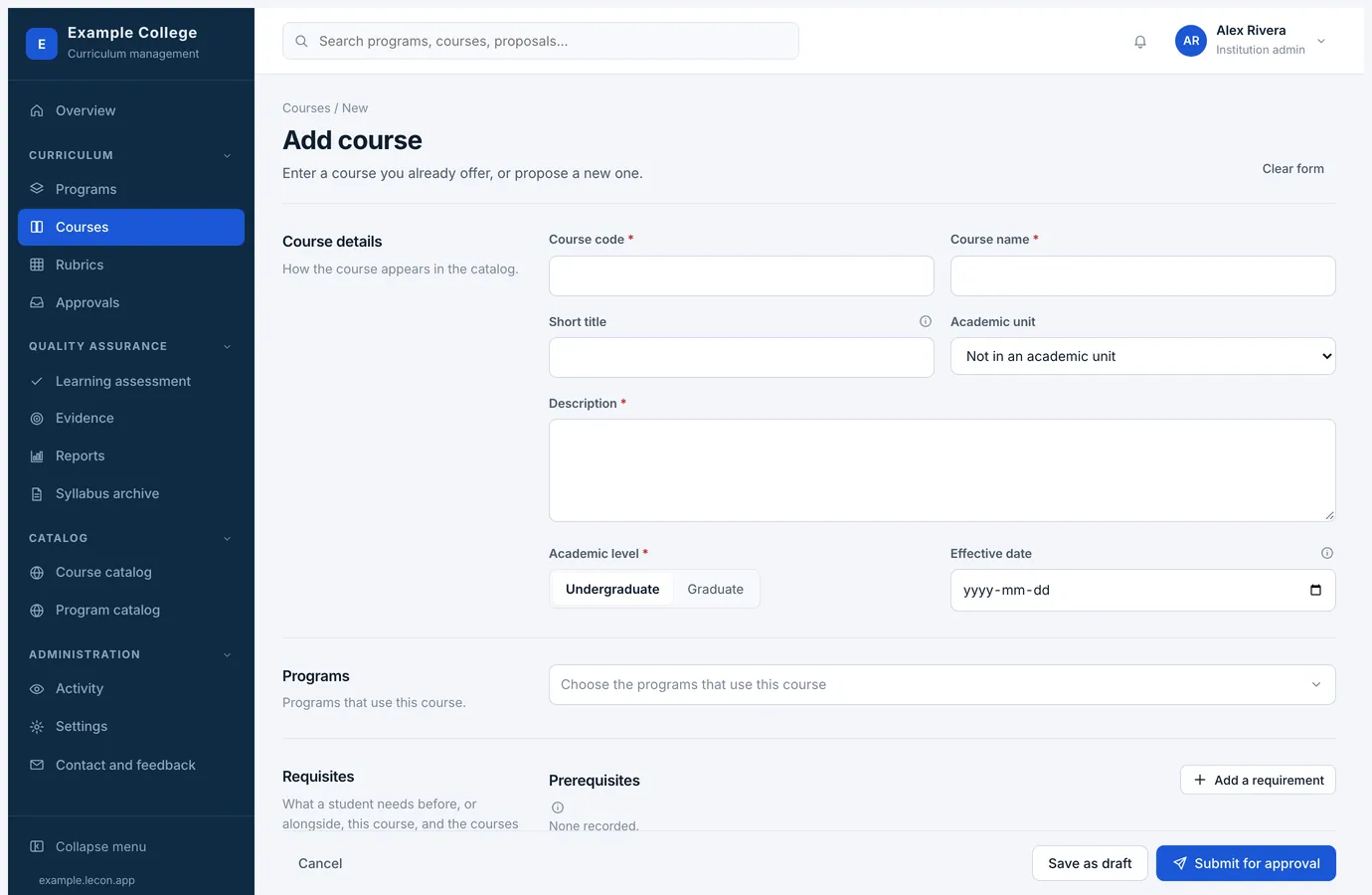
Courses → Add course opens one long form. You can save it as a draft at any point and come back; nothing is submitted until you say so. Where a field needs explaining, an (i) beside its name opens the explanation — on hover, on focus or on a tap — rather than crowding the form with it.
Filling in the form
- Course detailsHow the course appears in the catalog: code, name and description, academic level, the academic unit it belongs to, and the effective date — the first term this version applies to.
- ProgramsChoose every program that uses this course from the picker. This matters beyond bookkeeping: the learning outcomes of those programs become the ones you can link your course outcomes to.
- RequisitesWhat a student needs before, or alongside, this course, and the courses that count for it. These print in the calendar and are what the catalog shows students.
- Course learning outcomesWrite each as something a student can do. Under each outcome, tick the program outcomes it supports — those come from the programs you selected above.
- Credits, hours and gradingWhat the registrar and the calendar print: credits, contact hours, self-study hours, grading basis and scheme, the passing grade, and whether the course repeats. Contact hours are counted either in total or per week — most institutions say “45 hours” rather than “3 hours a week”, so a new course starts on In total, with the number of weeks beside it. Each kind of instruction has its own box — lecture, seminar, tutorial, lab, field experience, other and online — and they add up to the total. The hours here are the standard; a delivery mode can set its own.
- Course contentWhat the course outline sets out for students: topics, assessment, required readings and materials, learning activities, equipment and software, and supplementary resources.
- Delivery modesEvery way the course is offered — on campus, hybrid, fully online, or whatever your institution calls them. Your institution marks one as its default, and a new course starts with that one ticked: what you filled in above is that mode’s. Tick another where the course is also offered that way, and the mode records only what differs — its hours, assessments, materials, approach and weekly schedule.
- Standards and skillsHow the course meets the degree standards, the skills it develops, course attributes, and anything an outside body requires, including prior learning assessment.
- Syllabus policiesStandard wording printed on the syllabus. It is written once in Settings and chosen here, so the same policy reads the same way on every course.
- Other information and other detailsAnything else the outline or syllabus should say, plus any fields your institution has added of its own under Settings → Courses and syllabi.
Submitting it
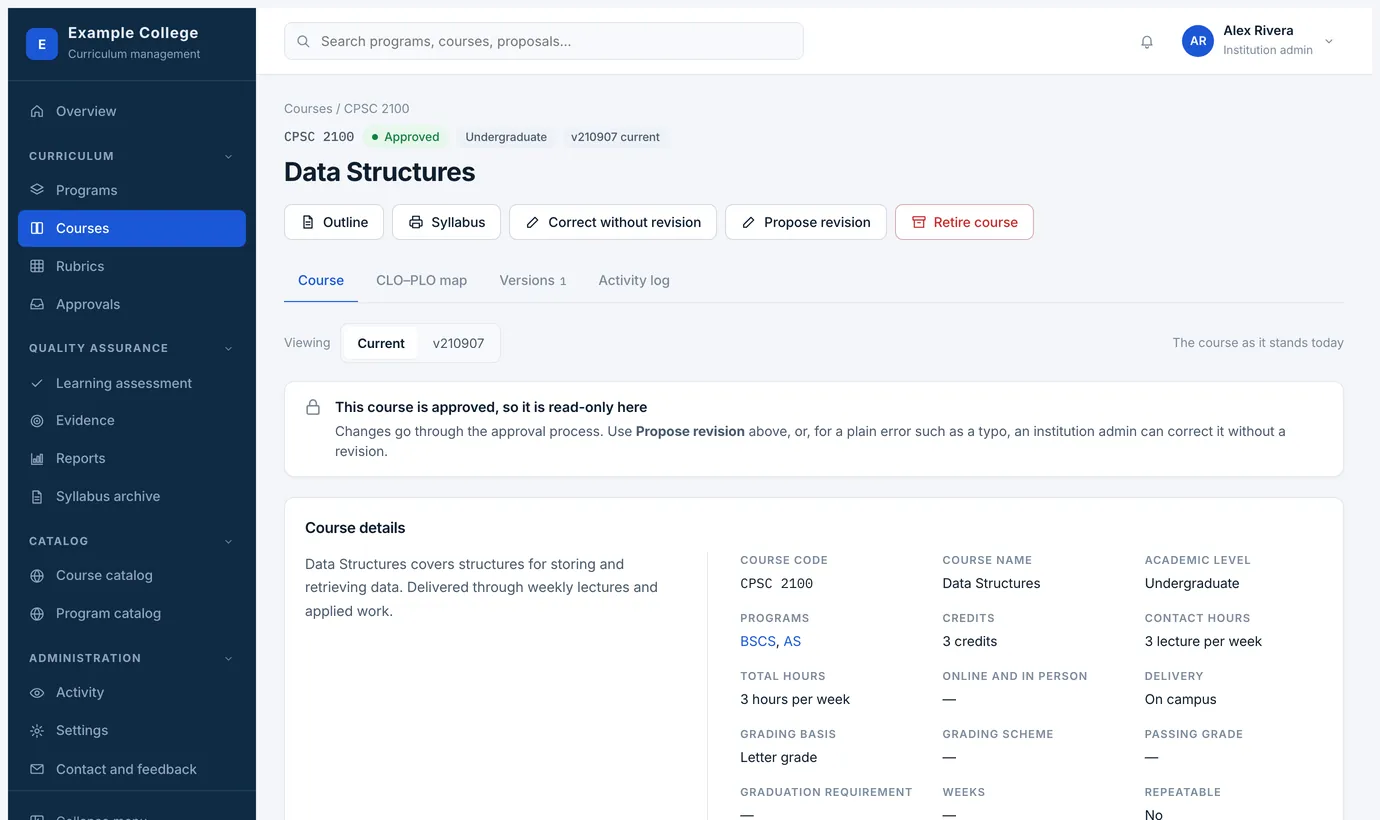
- Save as draft keeps it private to people who can edit curriculum. Nobody is notified.
- Submit for approval starts the course approval process at level 1 and emails the person responsible for that level.
- While it is in review the course page shows how far it has gone and who it is waiting on, and the form is read-only. If something is wrong, the reviewer sends it back to you.
The course page afterwards
- The tabs
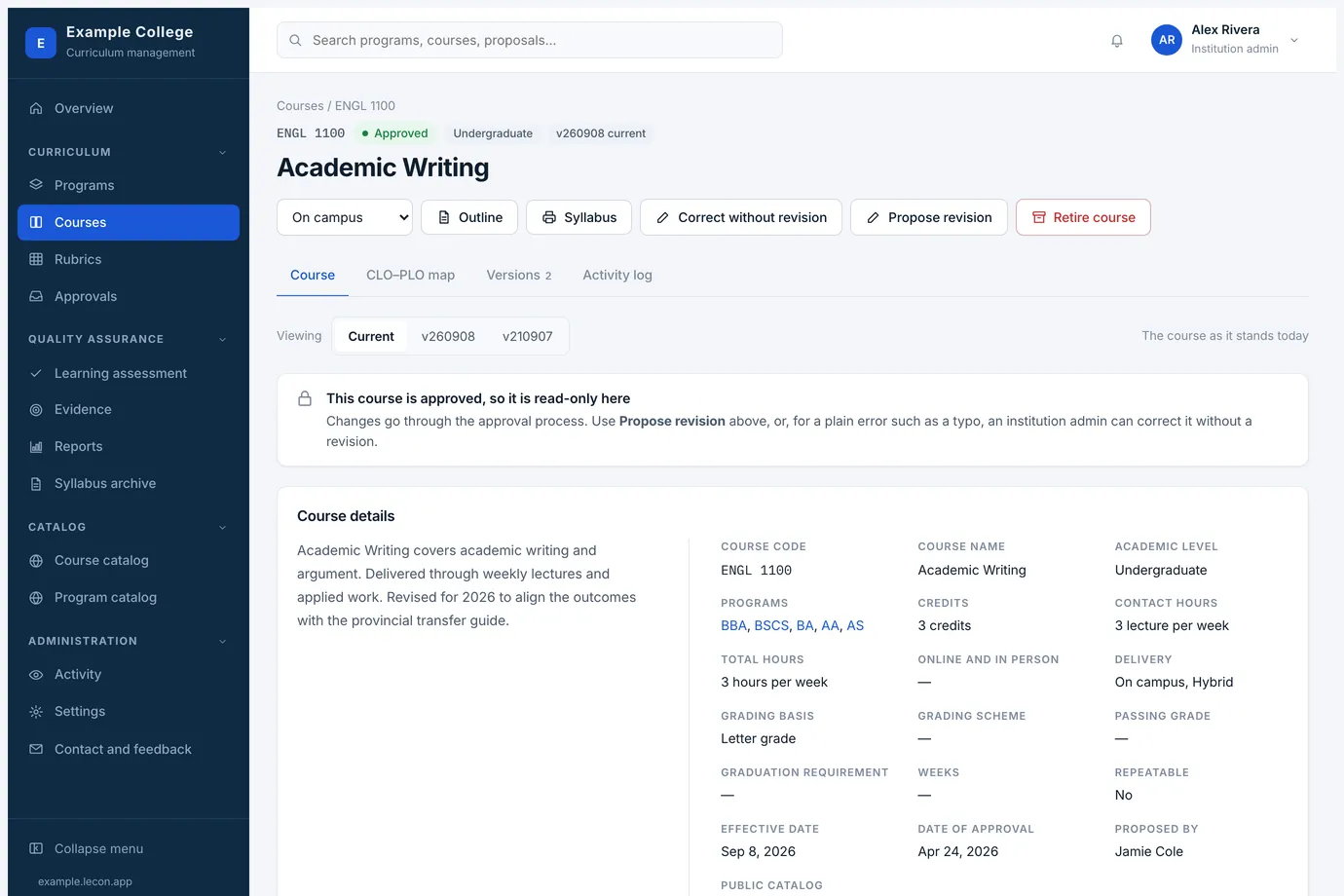
- Course is the record itself. CLO–PLO map shows where this course sits in each program’s map. Versions lists every approved version. Activity log is everything that has happened to it.
- Outline and Syllabus
- Print-ready documents built from the record — the course outline as approved, and the syllabus for a section. The selector beside them chooses which delivery mode you are looking at.
- Propose revision
- Starts a new version through the approval process. The approved version stays in effect until the revision is approved.
- Correct without revision
- For institution admins and plain errors only. It saves straight to the current version, asks for a reason, and is recorded in the log and in version history.
- Retire course
- Sends a retirement request through its own approval process.